
Overview
Starting with Xodo PDF Studio 2026.3.0, you can switch the application's new Toolbar interface to Dark Mode for a more comfortable viewing experience, especially in low-light environments.
Enable Dark Mode
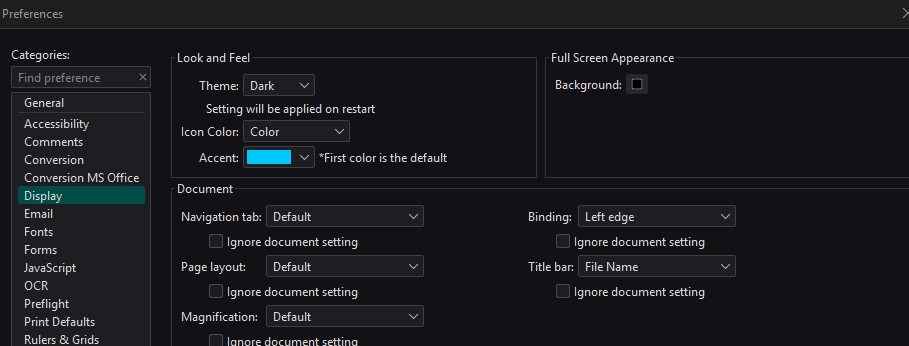
- Open Preferences.
- Select Display from the left navigation panel.
- Under Look and Feel, locate the Theme setting.
- Choose Dark from the dropdown menu.
- Restart Xodo PDF Studio to apply the change.
What Changes?
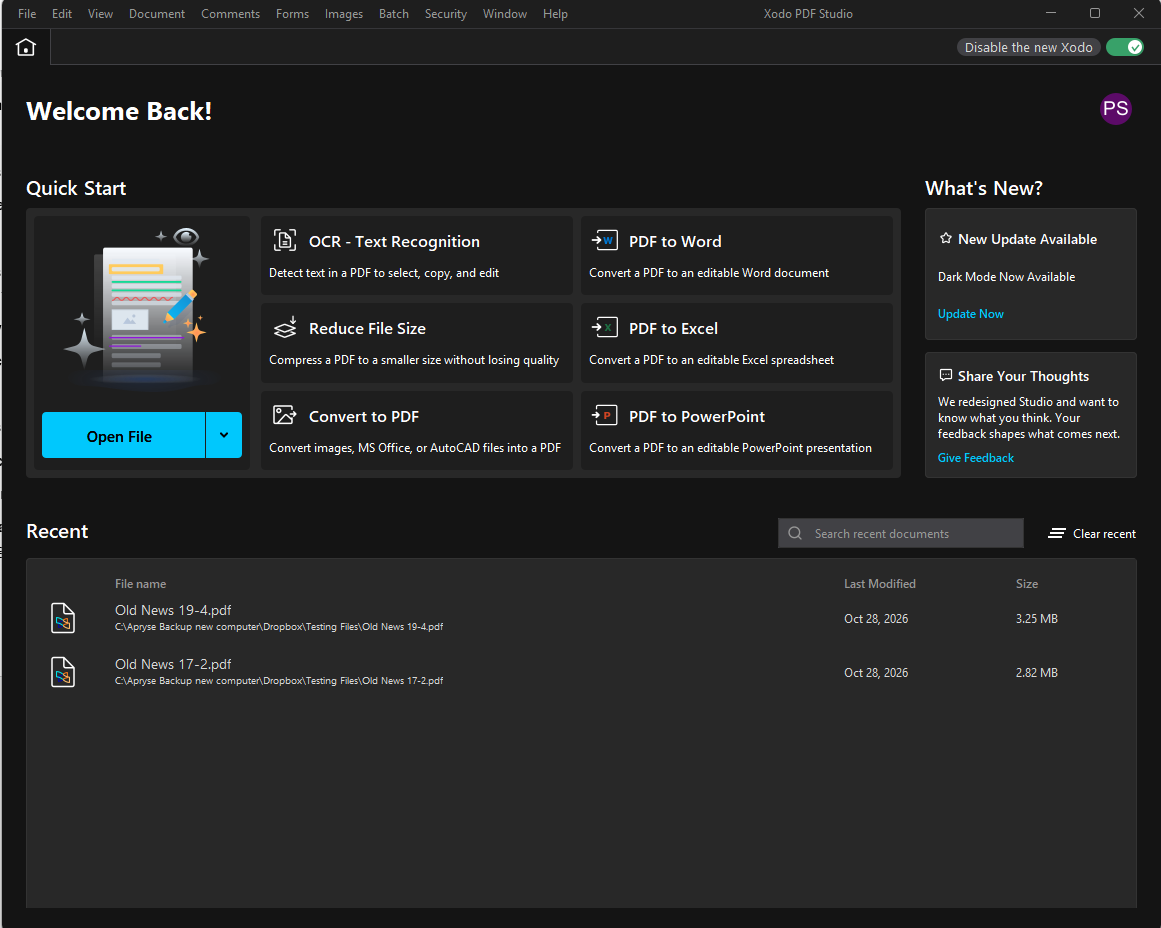
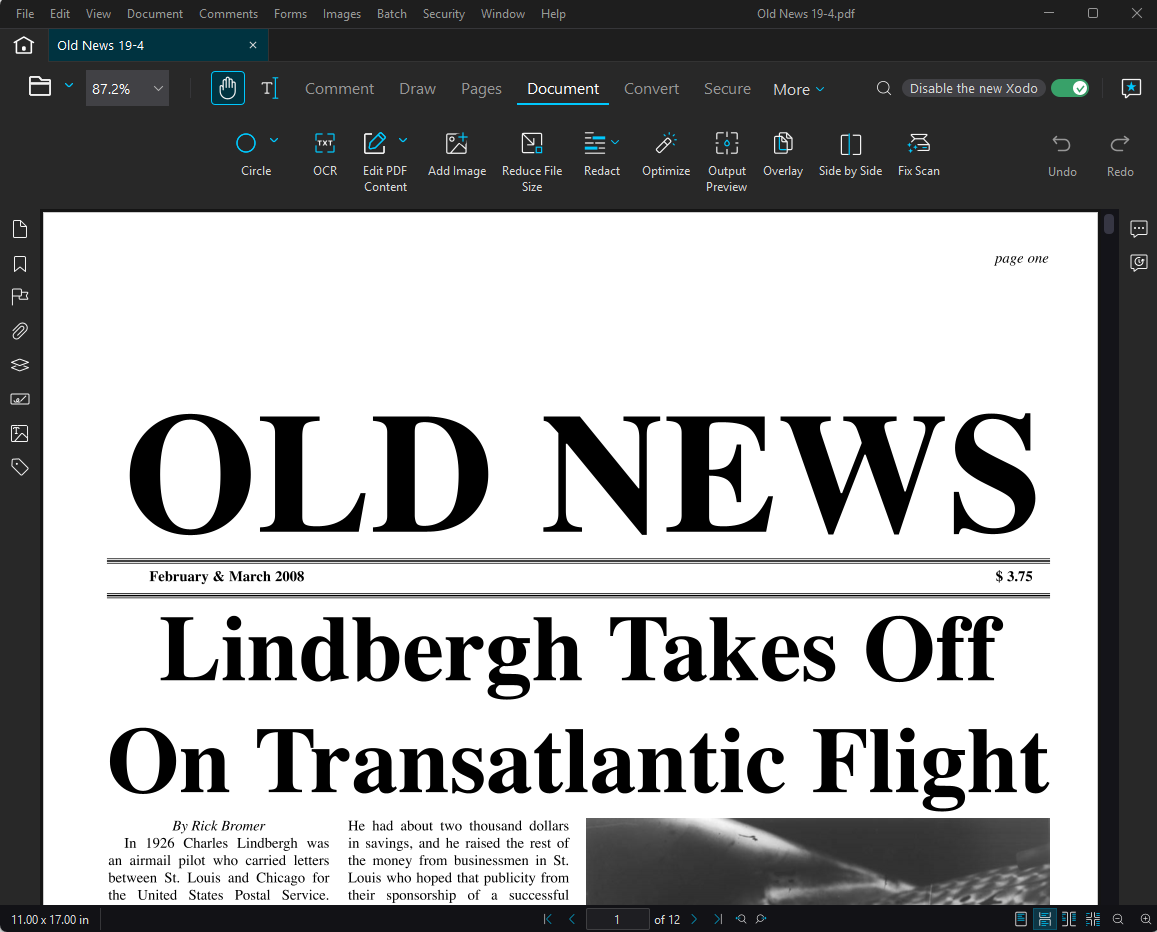
When Dark Mode is enabled, Xodo PDF Studio user interface adopts a darker color scheme across menus, toolbars, panels, and application windows.
Notes
- Dark Mode is available in Xodo PDF Studio 2026.3.0 and later.
- A restart is required after changing the theme.
- You can switch back to the default light appearance at any time by selecting a different theme in Preferences > Display.
Need Help?
If you experience any issues enabling Dark Mode, contact our support team through Help > Email Support within Xodo PDF Studio.