
For most customers, removing an ActivePDF product license is a straightforward process. You open the ActivePDF License Manager, select the license, "Remove", and the product license is removed. Additional steps are required if the license has a set number of activations. In these cases you need to select "Deactivate via the Internet" and the license manager will contact the ActivePDF licensing server to deactivate the license.
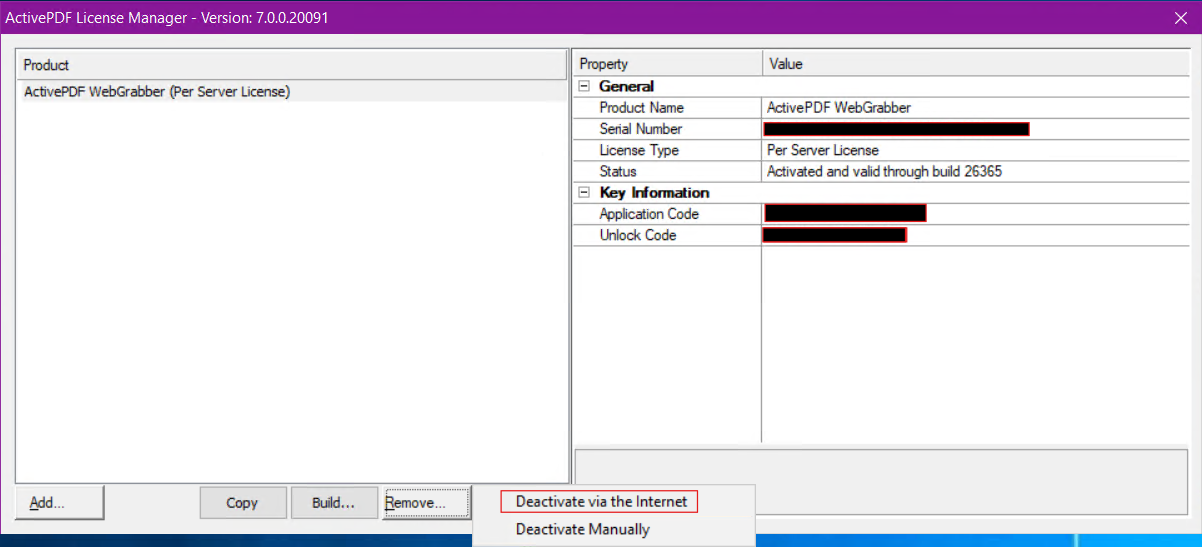
If the machine does not have access to the internet, it cannot contact the licensing server to deactivate the license.
In these cases manual deactivation is necessary.
Manual Dectivation
Open the ActivePDF License Manger and select the license you want to deactivate, select "Remove" and "Deactivate Manually". The Manual Deactivation dialog will open with options to deactivate your license.
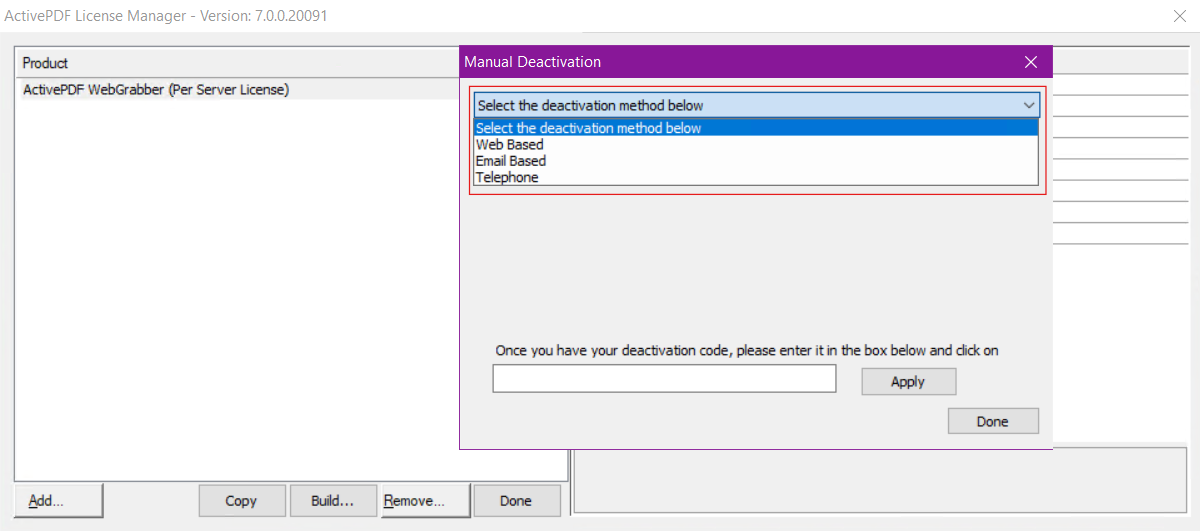
Web Based (Recommended)
Web based deactivation is the recommended method as it allows you to deactivate your license without contacting support. Select "Web Based" which will open this dialog.
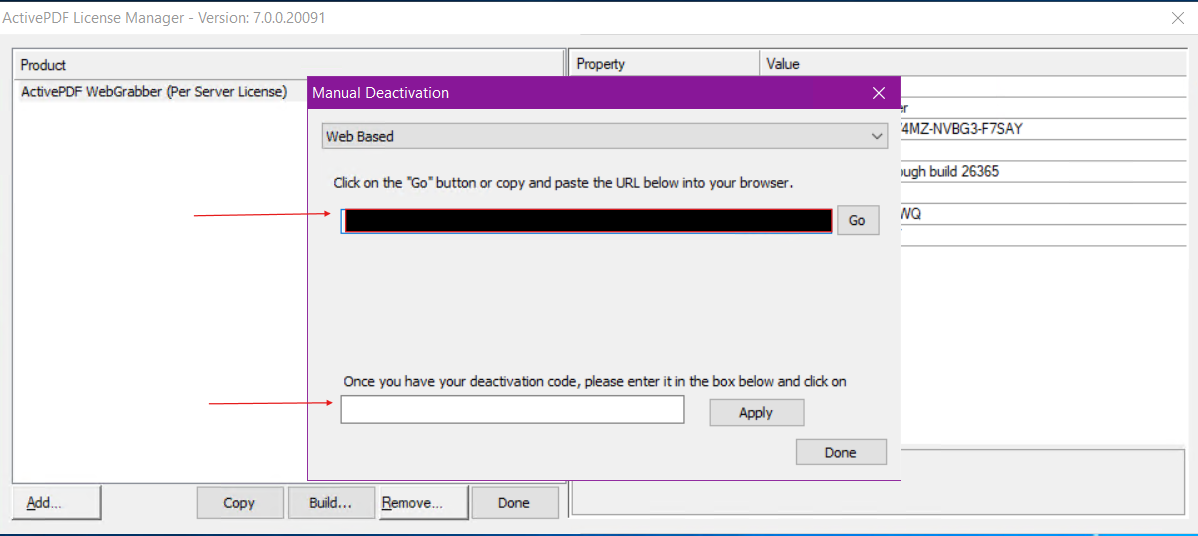
The redacted area here is a URL with your license and application code, open the URL on a machine with internet access which will load the ActivePDF Licensing Center.
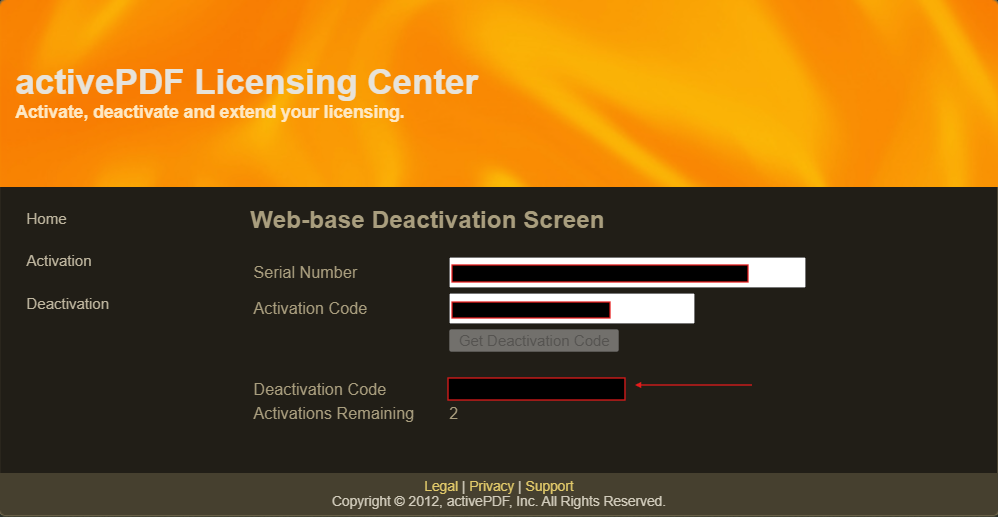
The licensing center will display a deactivation code and remaining activations for your license. Copy the deactivation code and paste it in the license manager above then click apply. Your license is now removed.
Email Based
If you have an email provider setup, this option will email our support team with your license and activation code so we can send you the deactivation code. 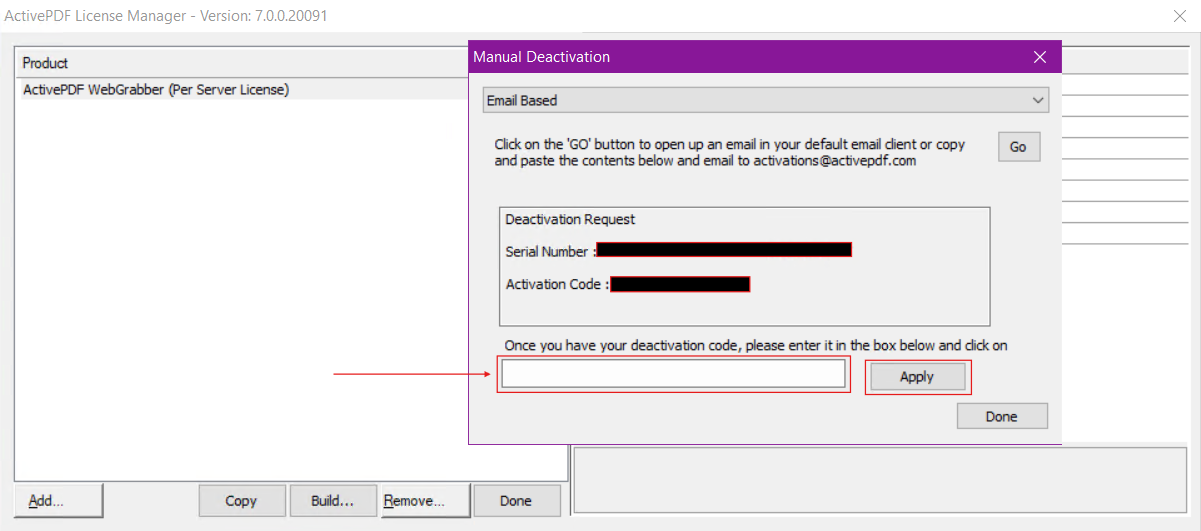
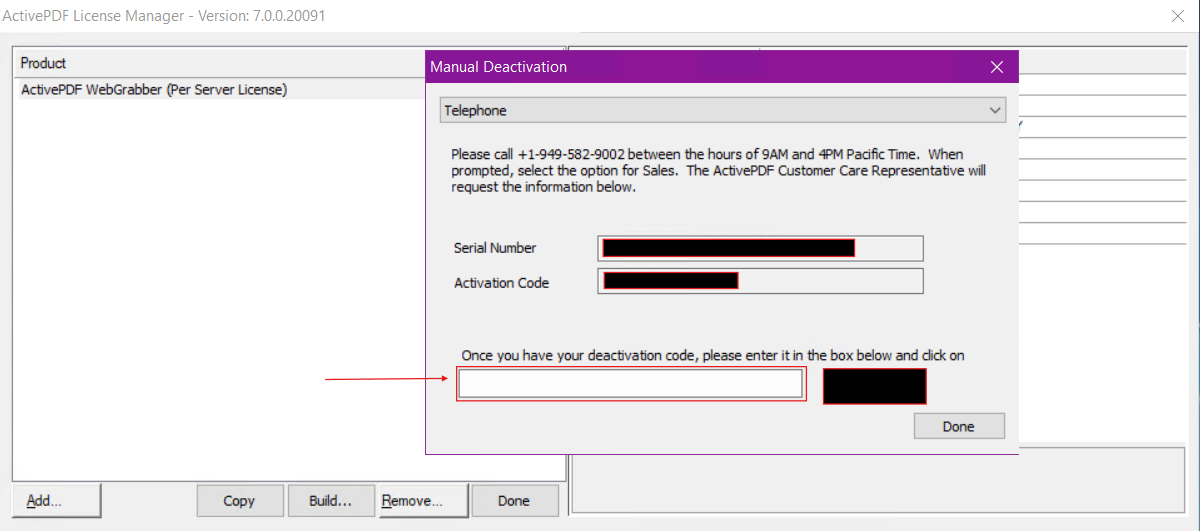
Telephone Based
You can also select "Telephone", which will provide you with a support number to call to obtain a deactivation code.
ActivePDF License Manager
- Product installation will create a short cut on the desktop for the ActivePDF License Manager, or if it is deleted it can be found in C:\Program Files (x86)\ActivePDF License Manager.